These short videos guide you through the key ways you can use this website:
Register as an Ambassador
Video guide
Step-by-step (click to expand)
1. Visit epasbe.eu – click on “register”.
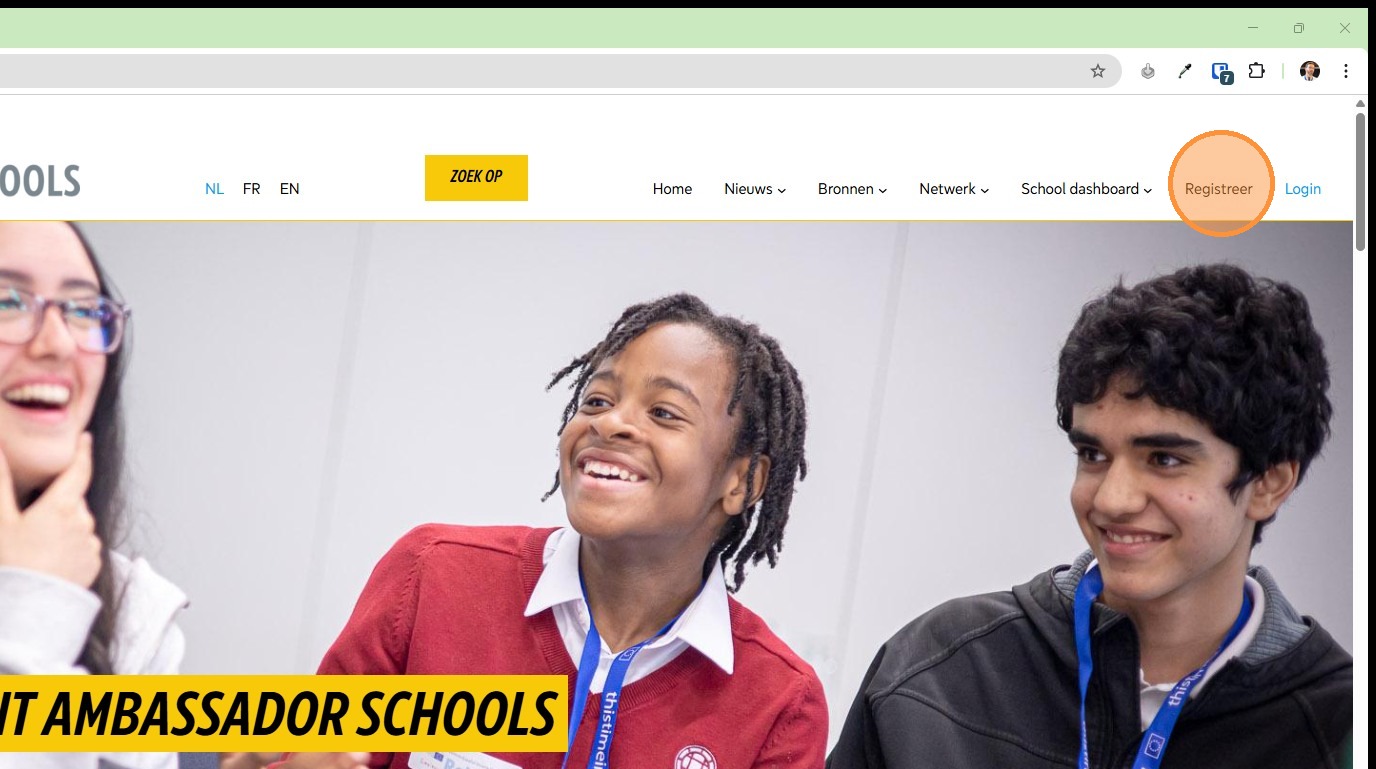
2. And here we’re taken to a page where we can register as an ambassador on the site.
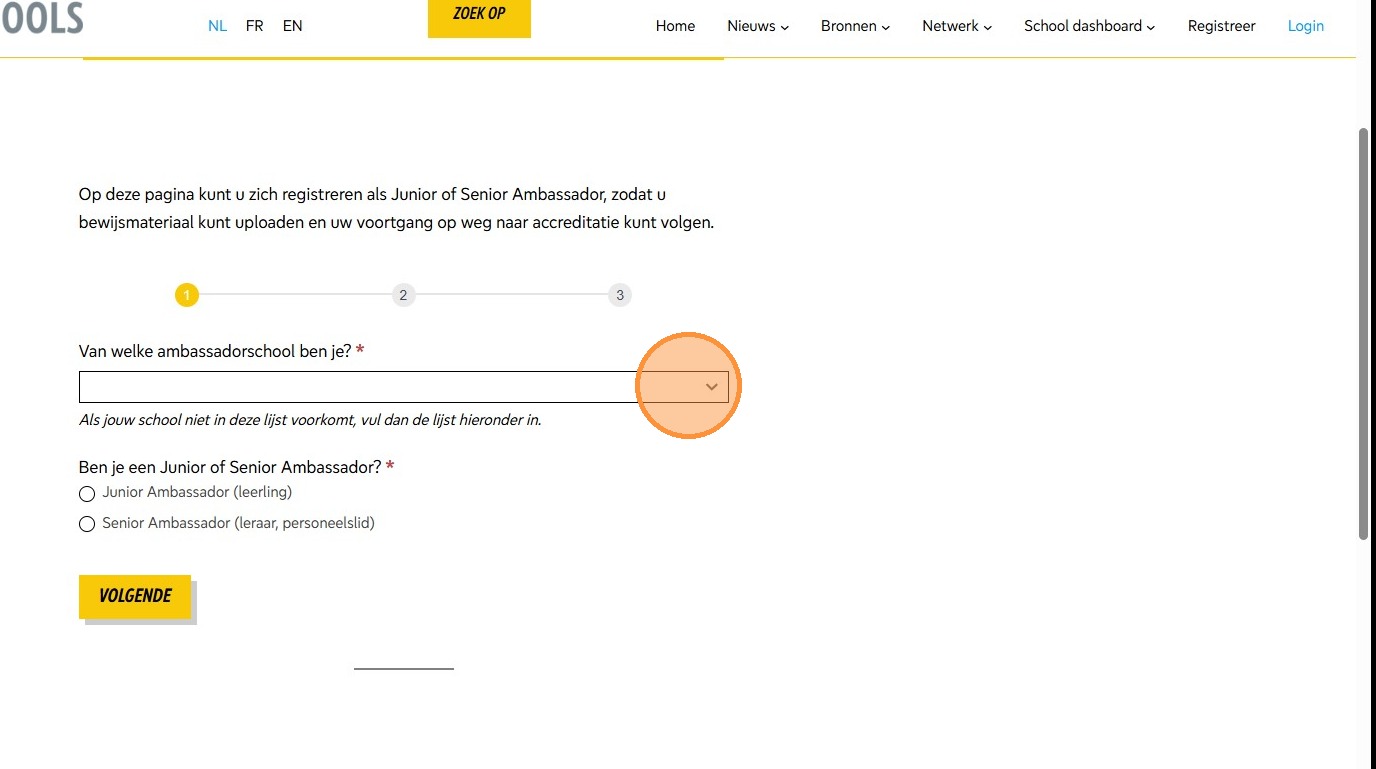
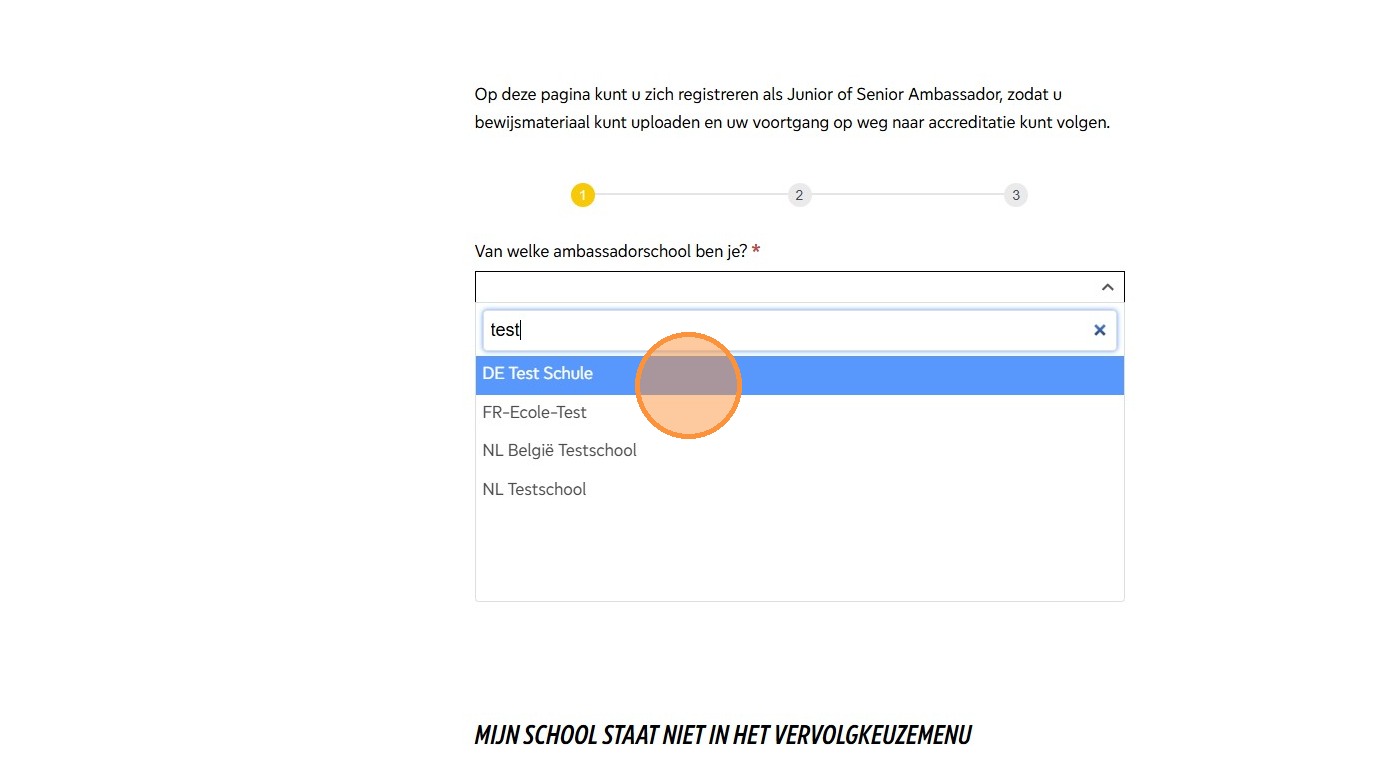
3. Choose your school from this drop down menu. You can start typing the name of your school and it will show you relevant schools. Choose your school.
(If your school isn’t in the list you’ll need to register on the link lower down the page).
4. Say whether you are a junior or senior ambassador.
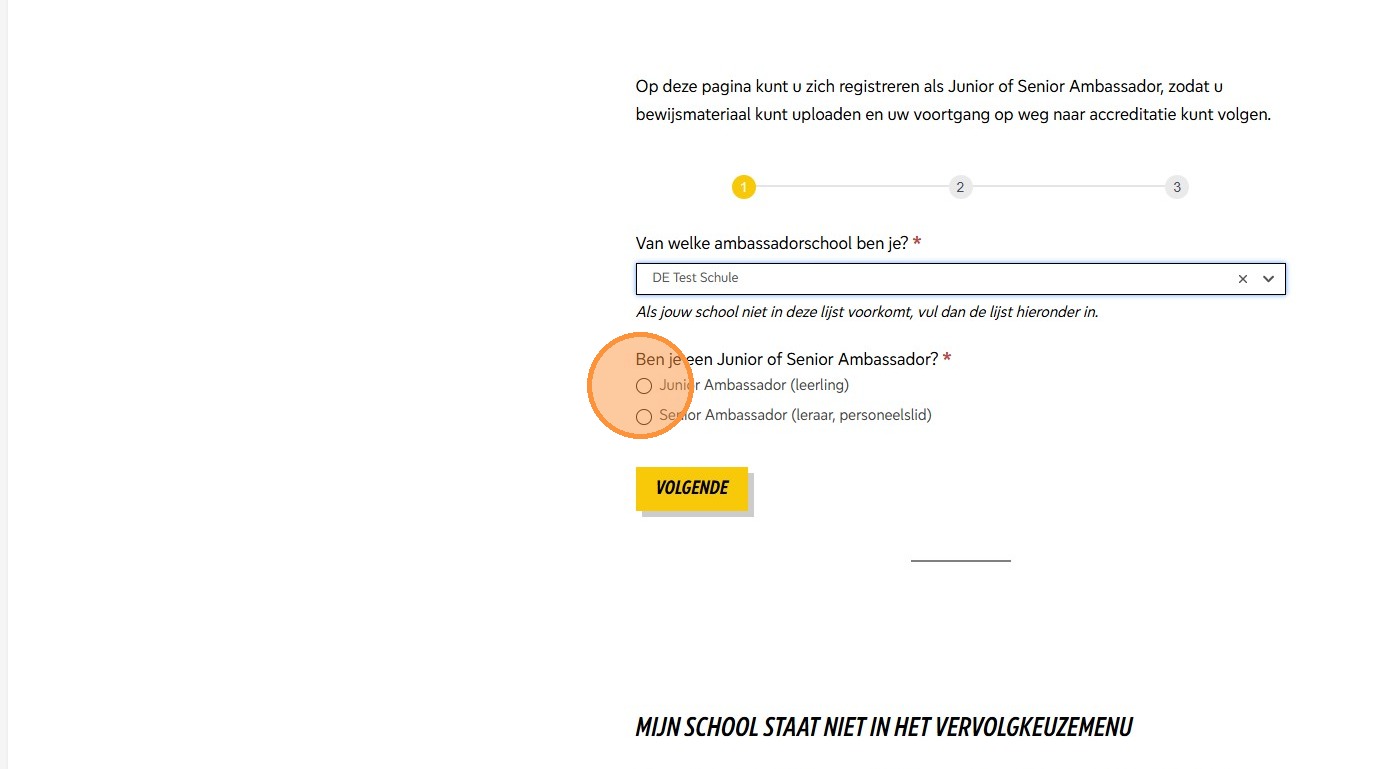
5. Click “submit”
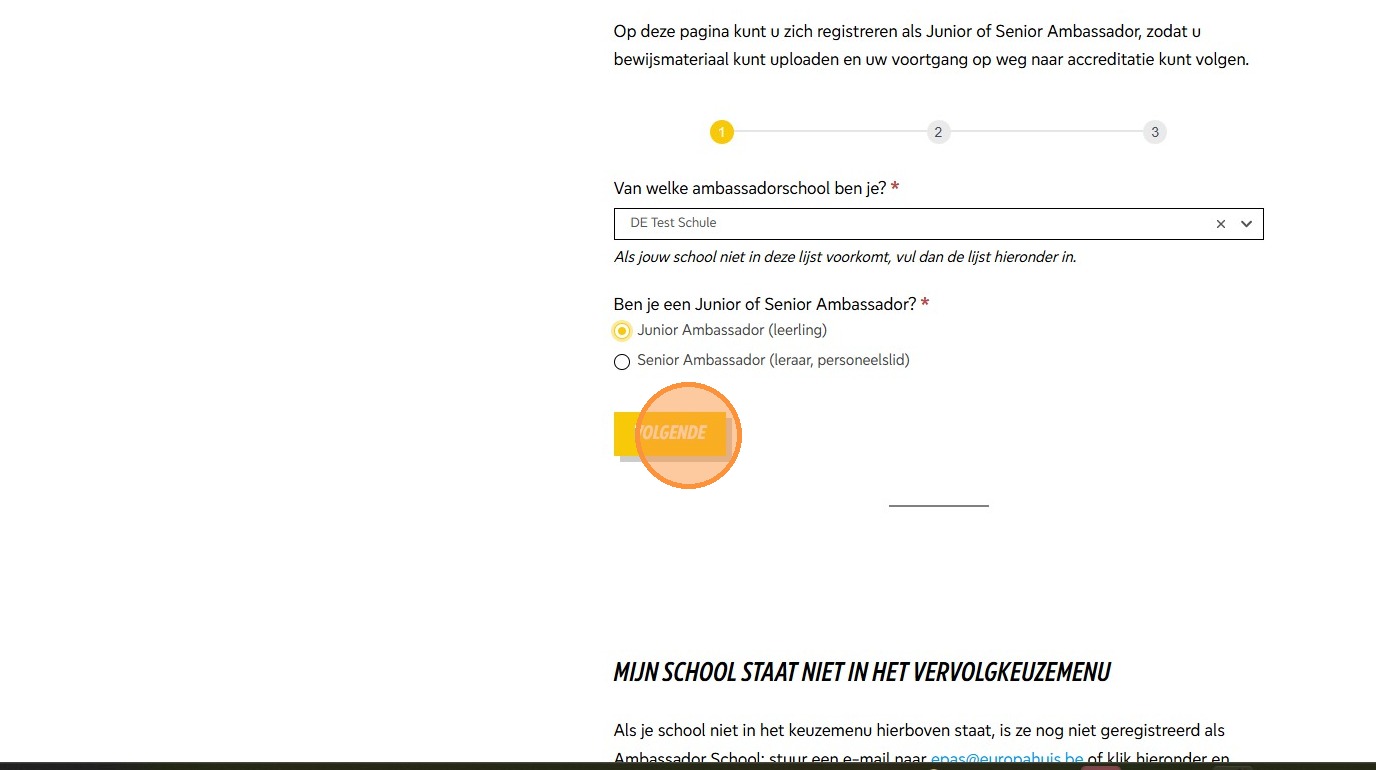
6. Enter your name and email.
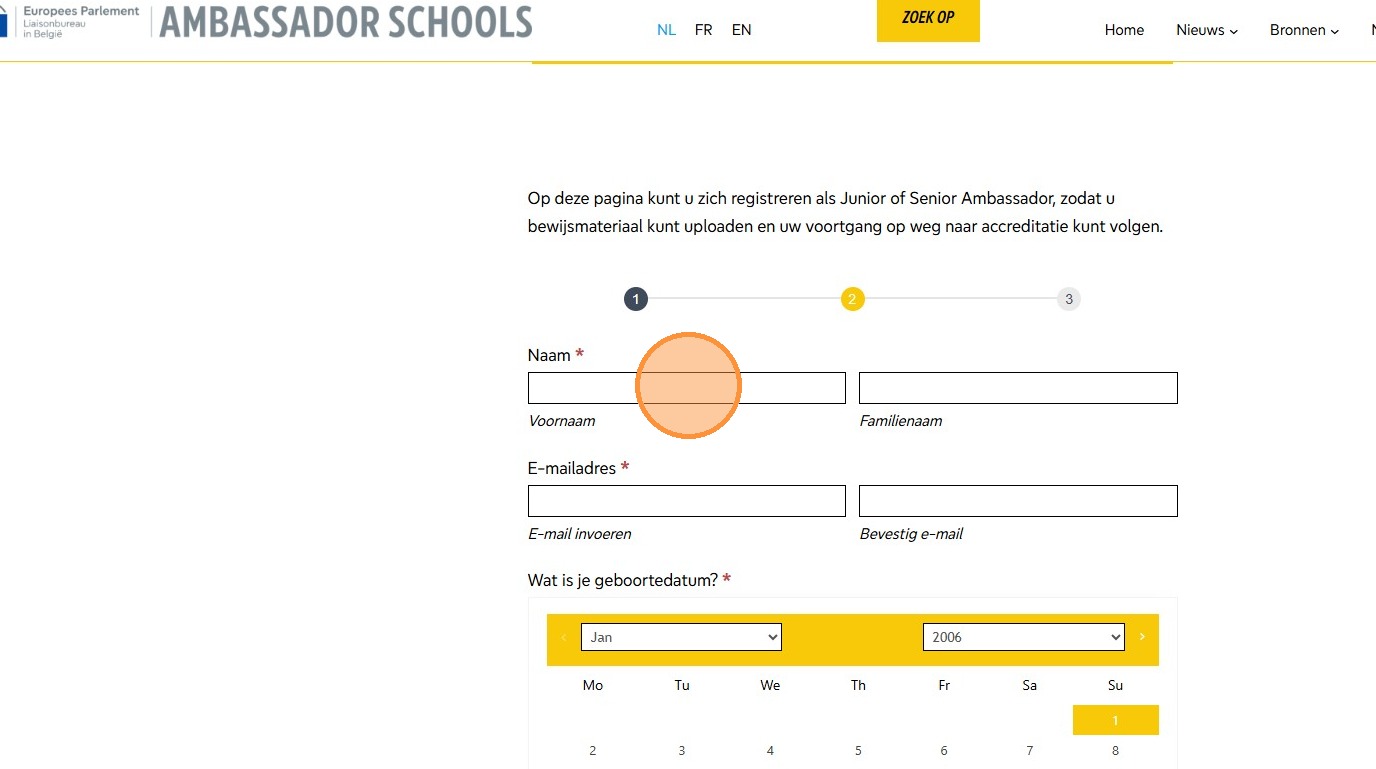
7. If you’re a junior ambassador, you’ll be asked for your date of birth. If you’re a senior ambassador, you’ll be asked what your job title is and whether you are happy for your email address to be shared with other Belgian Senior Ambassadors.
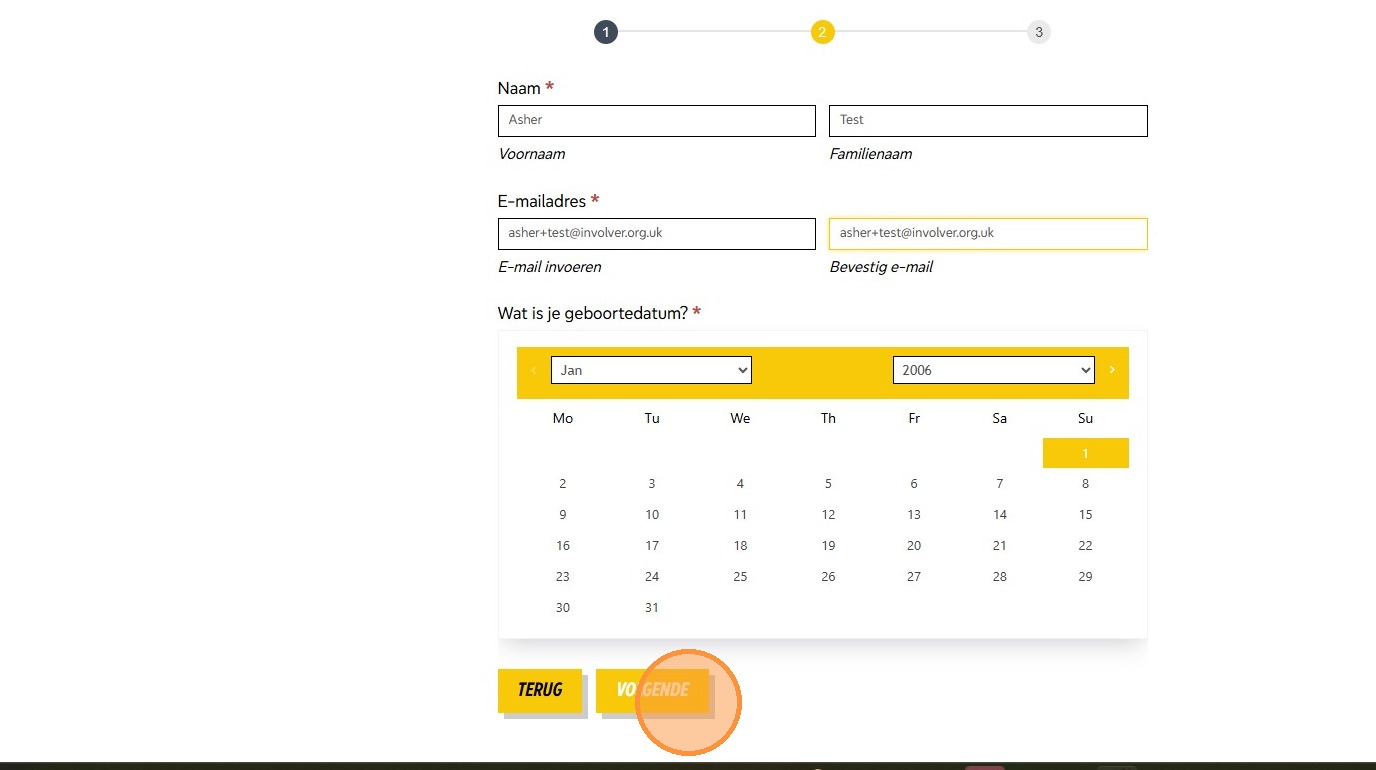
8. Then there is a choice to make about whether you are happy to be recorded (photographed, videos, etc.).
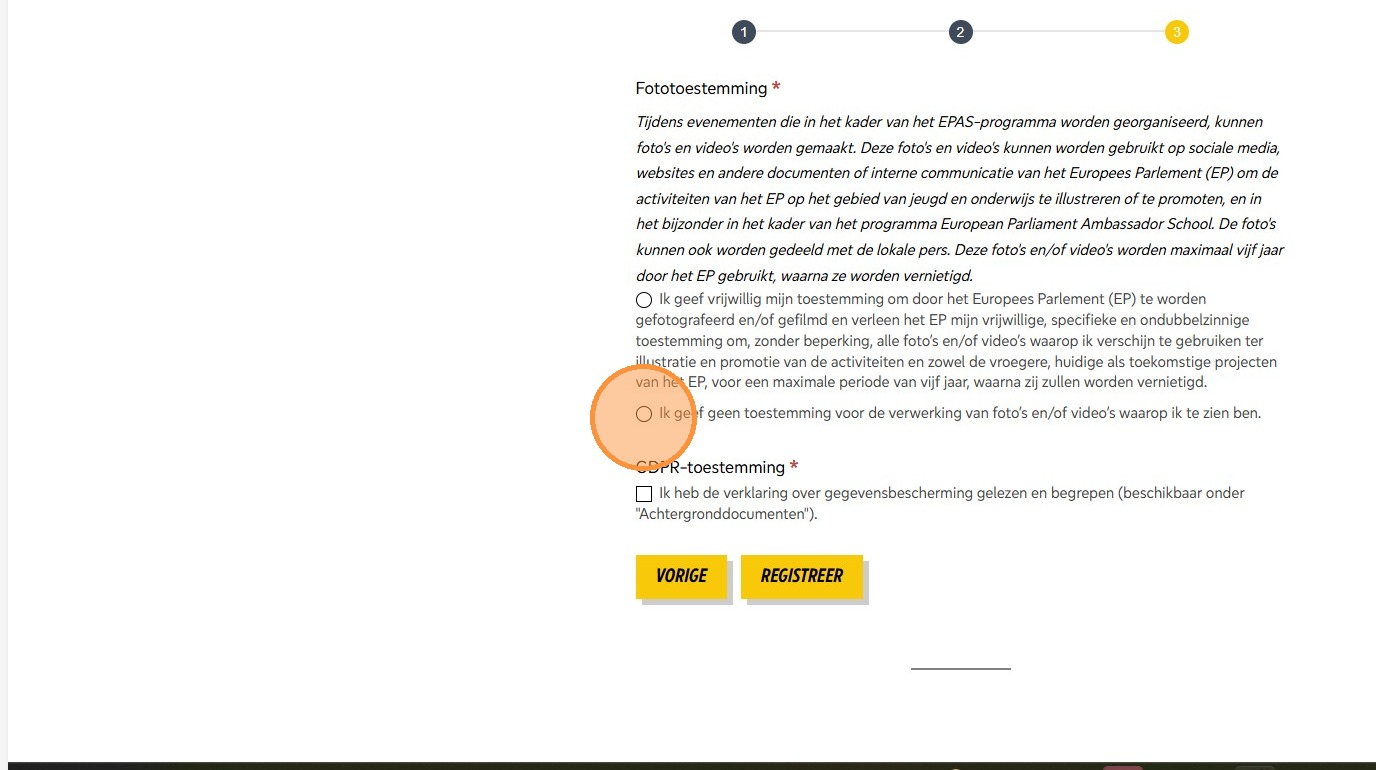
9. And you need to check and tick the GDPR information.
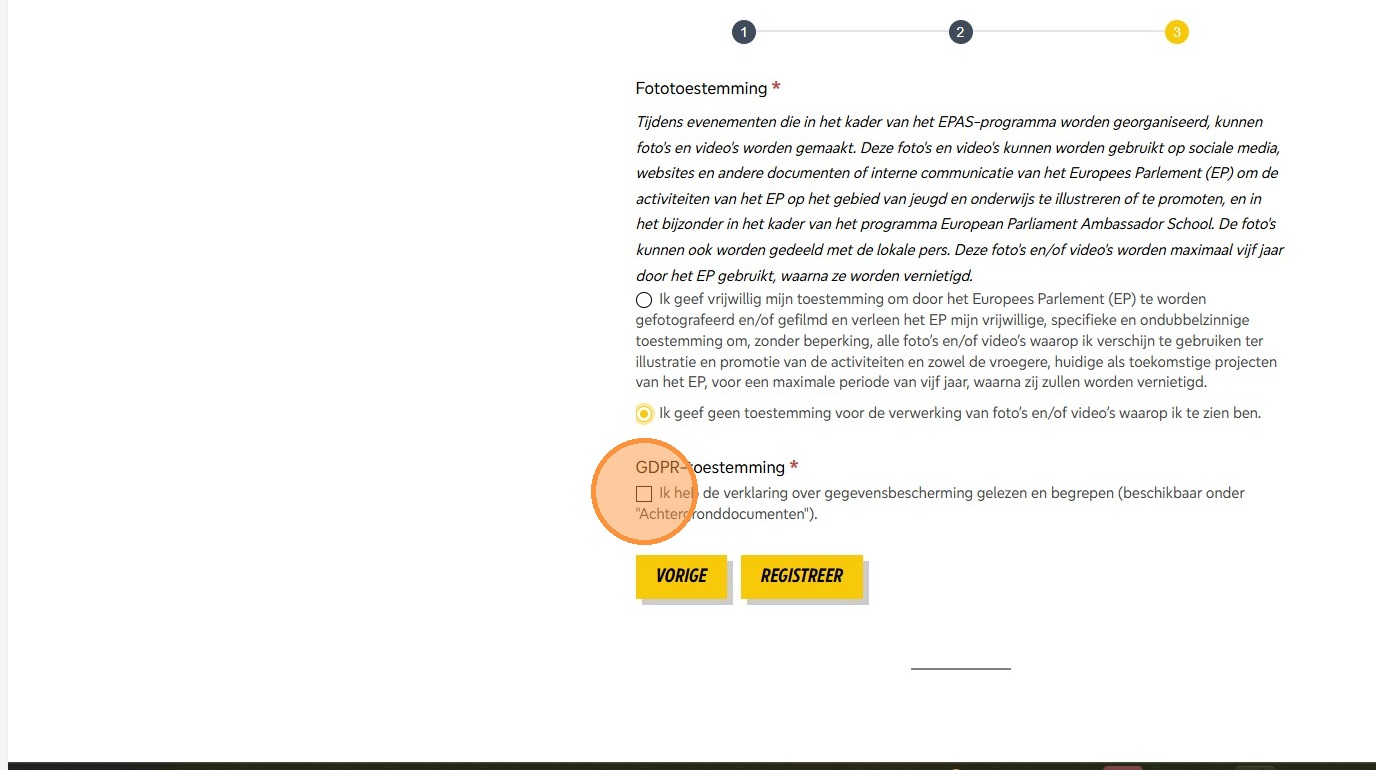
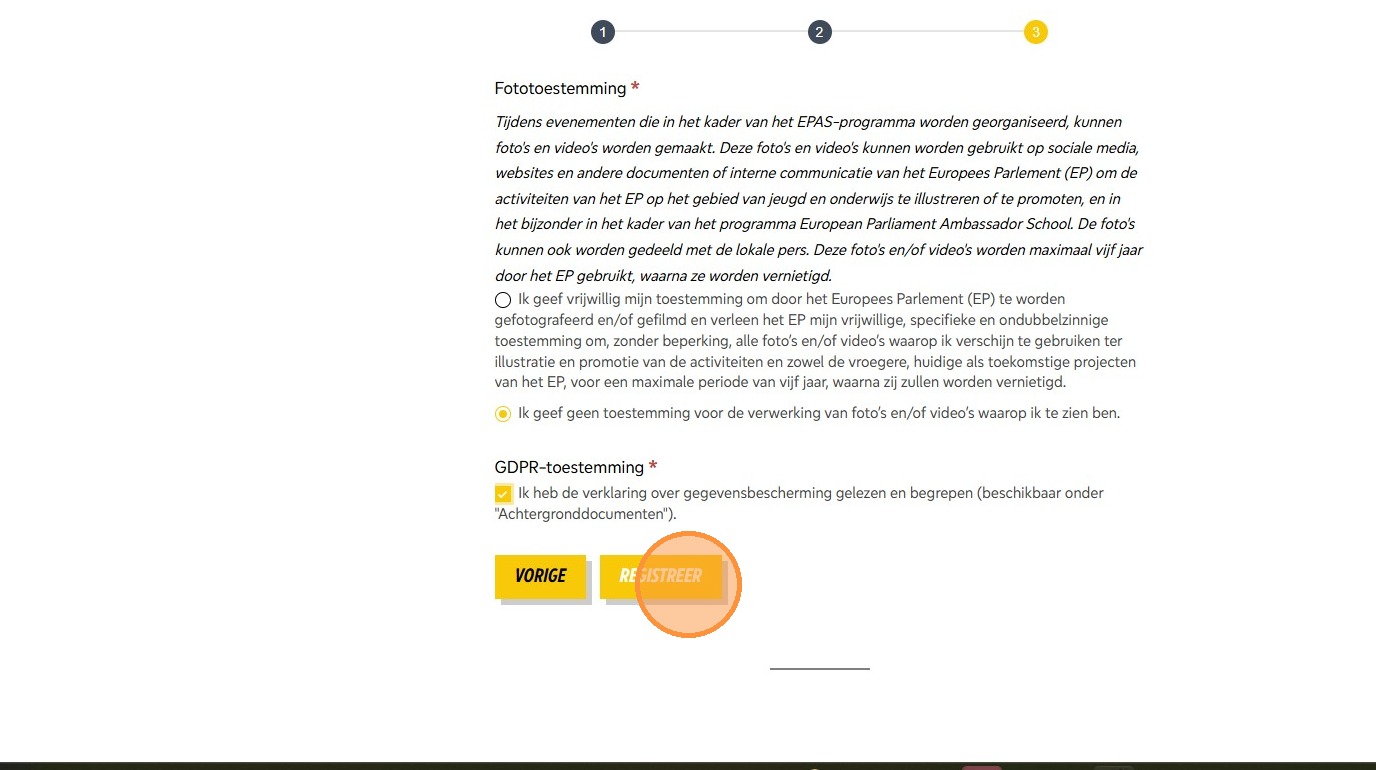
10. Click “register”. You will receive an email with a link that will allow you to set up a password and log in to the site to submit evidence, check your progress, etc. We check all applications to keep everyone on the site safe.
Upload evidence
Video guide
Step-by-step (click to expand)
1. Click “Login”
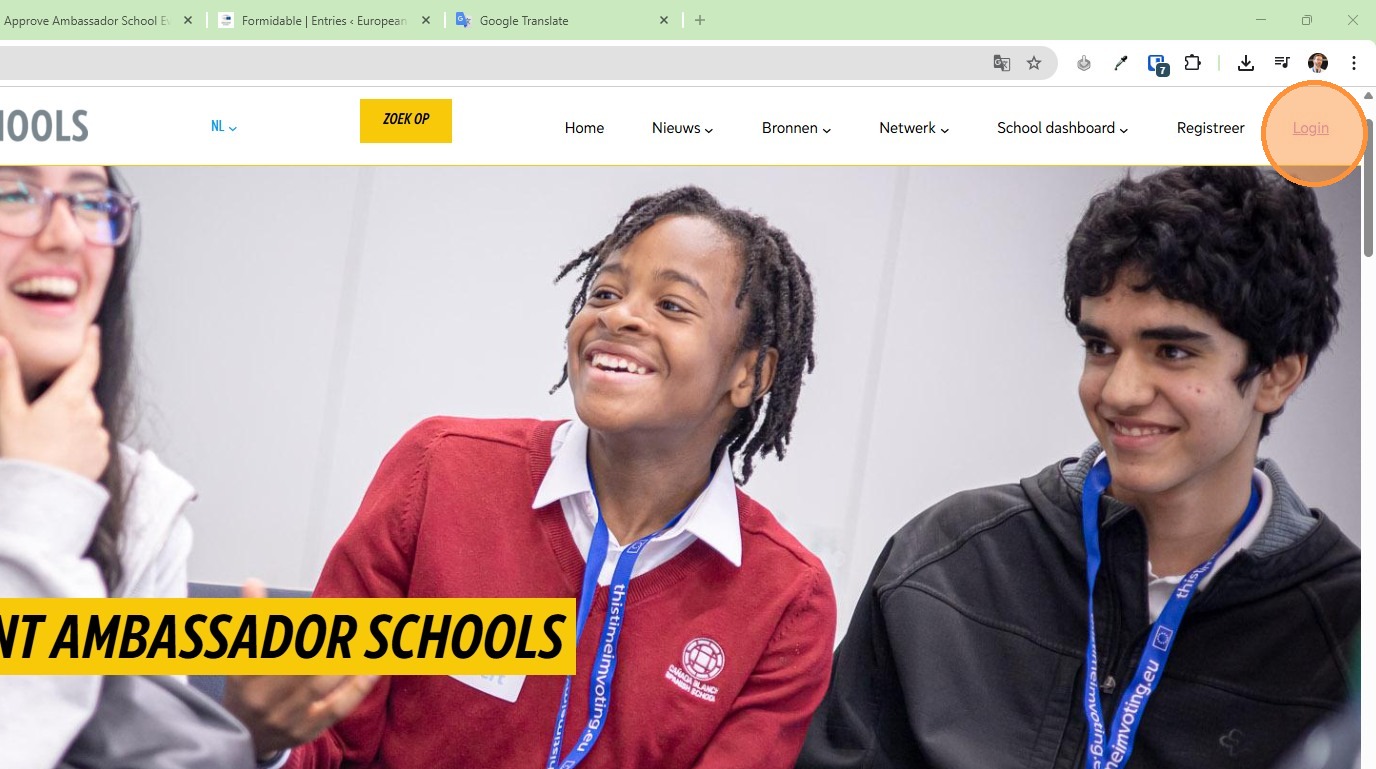
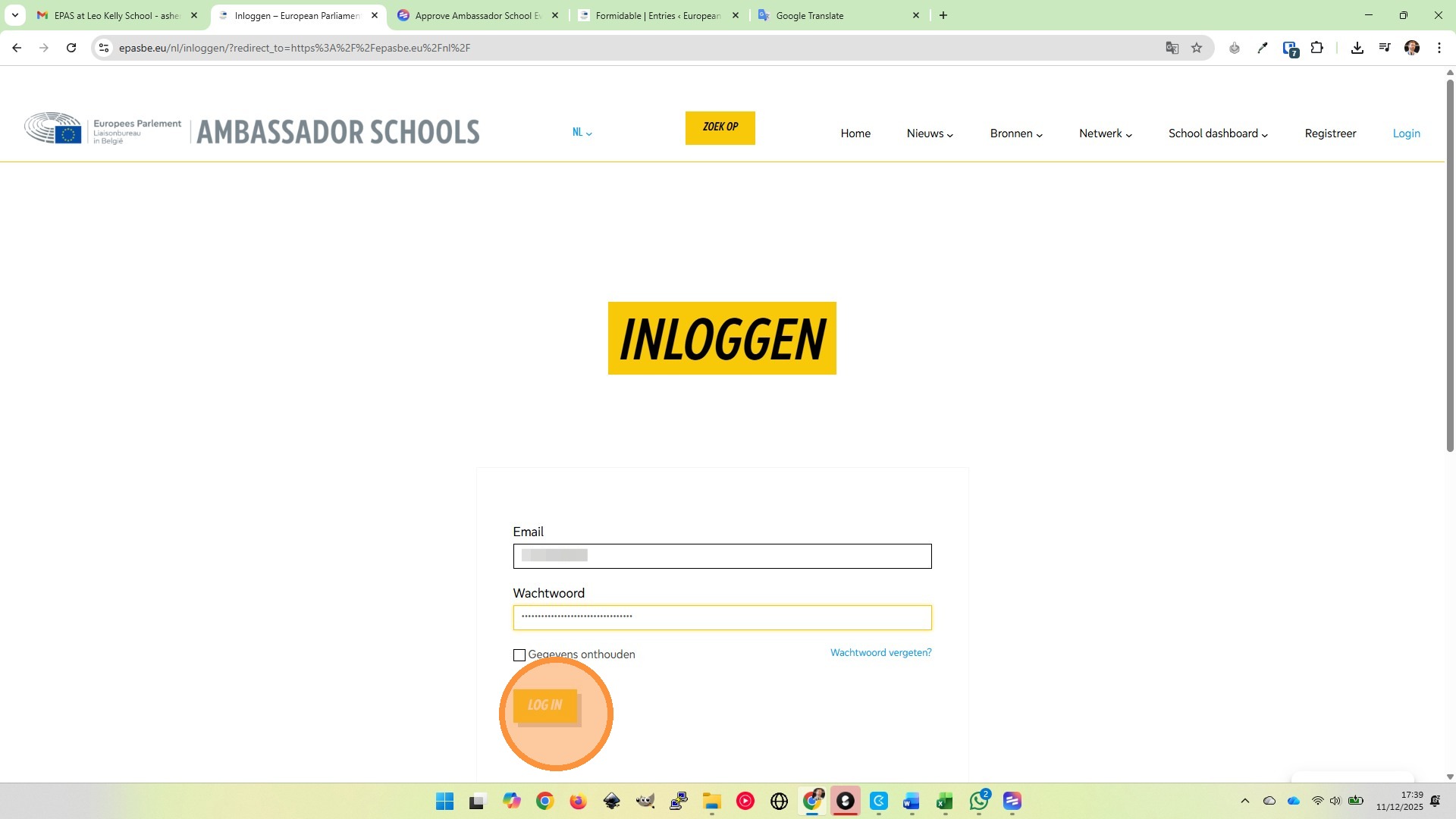
2. Add your email and password.
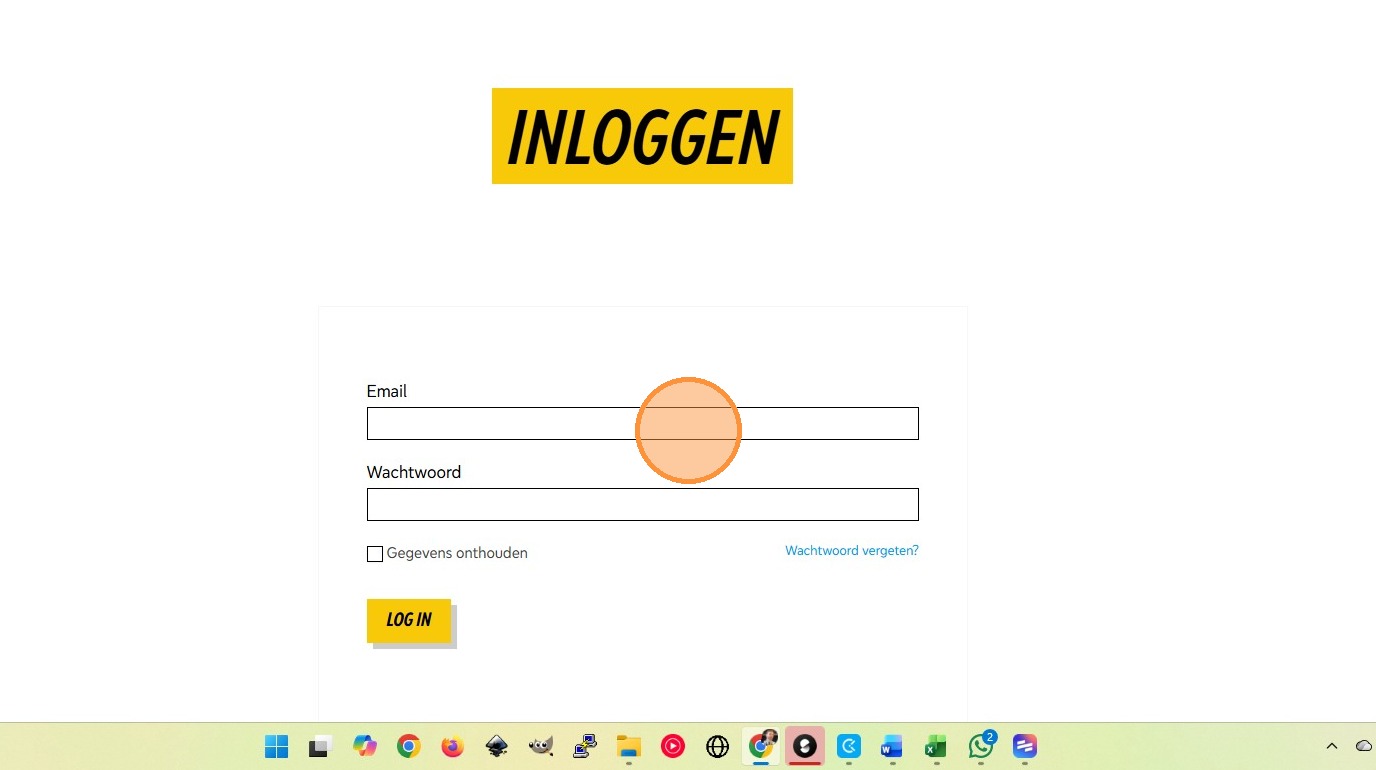
3. Click “Log in”.
4. Click “School dashboard”.
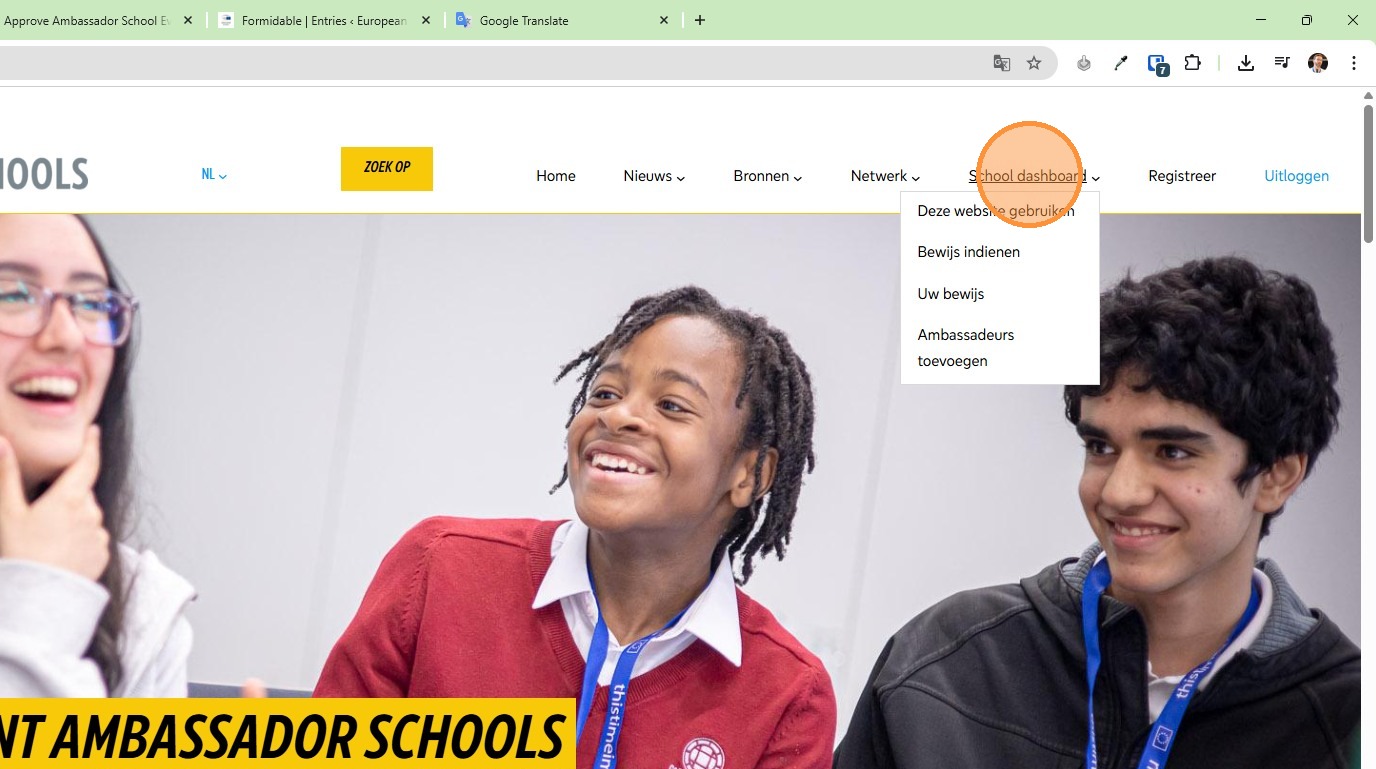
5. Click “Add evidence”.

6. Add a title for your activity.
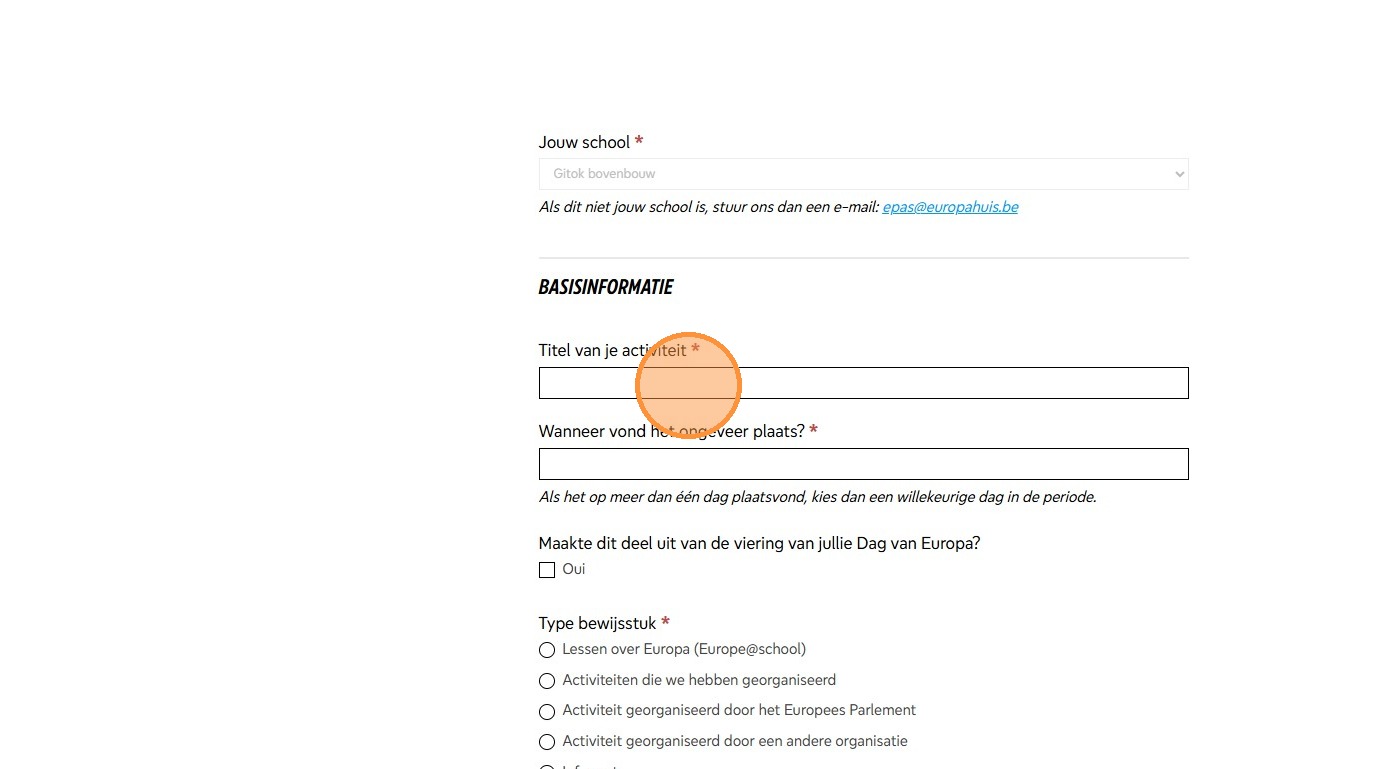
7. Add the date.
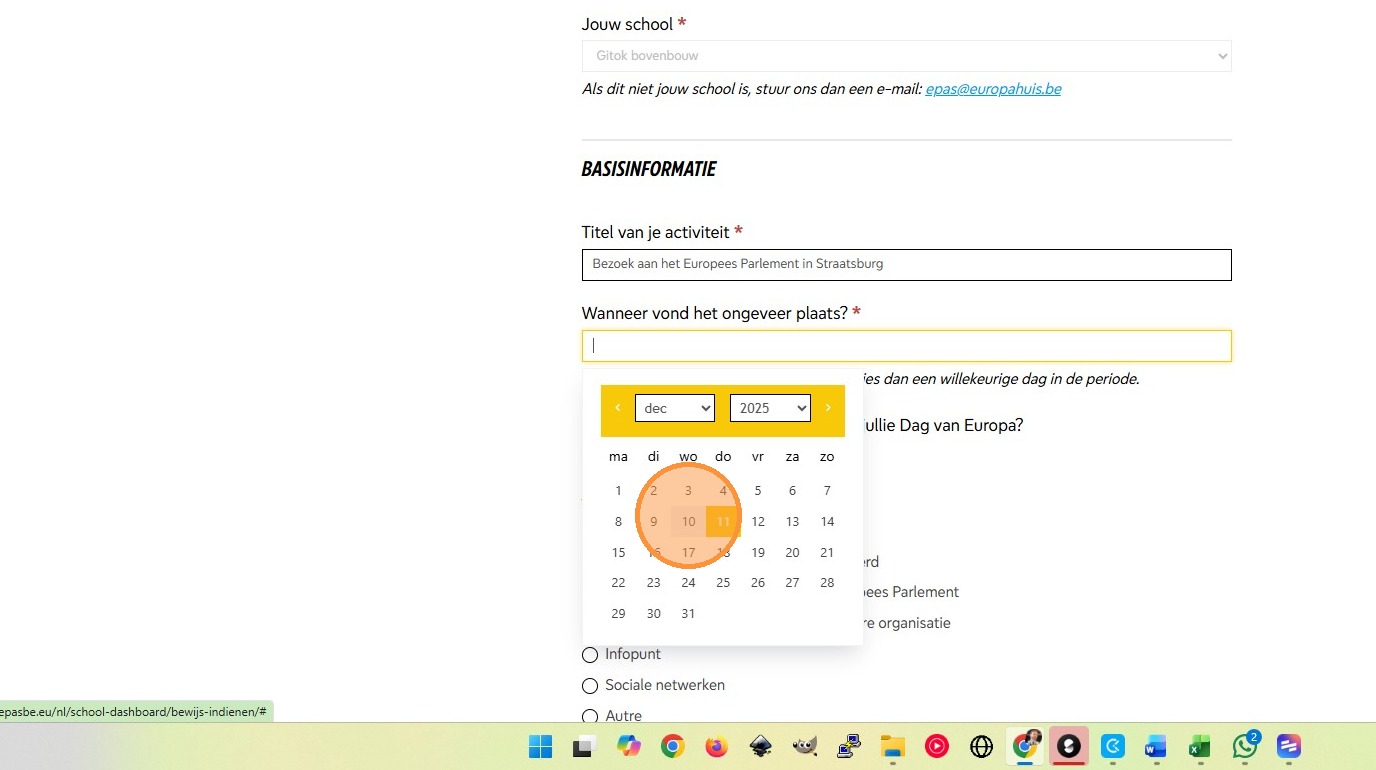
8. Select the type of activity.
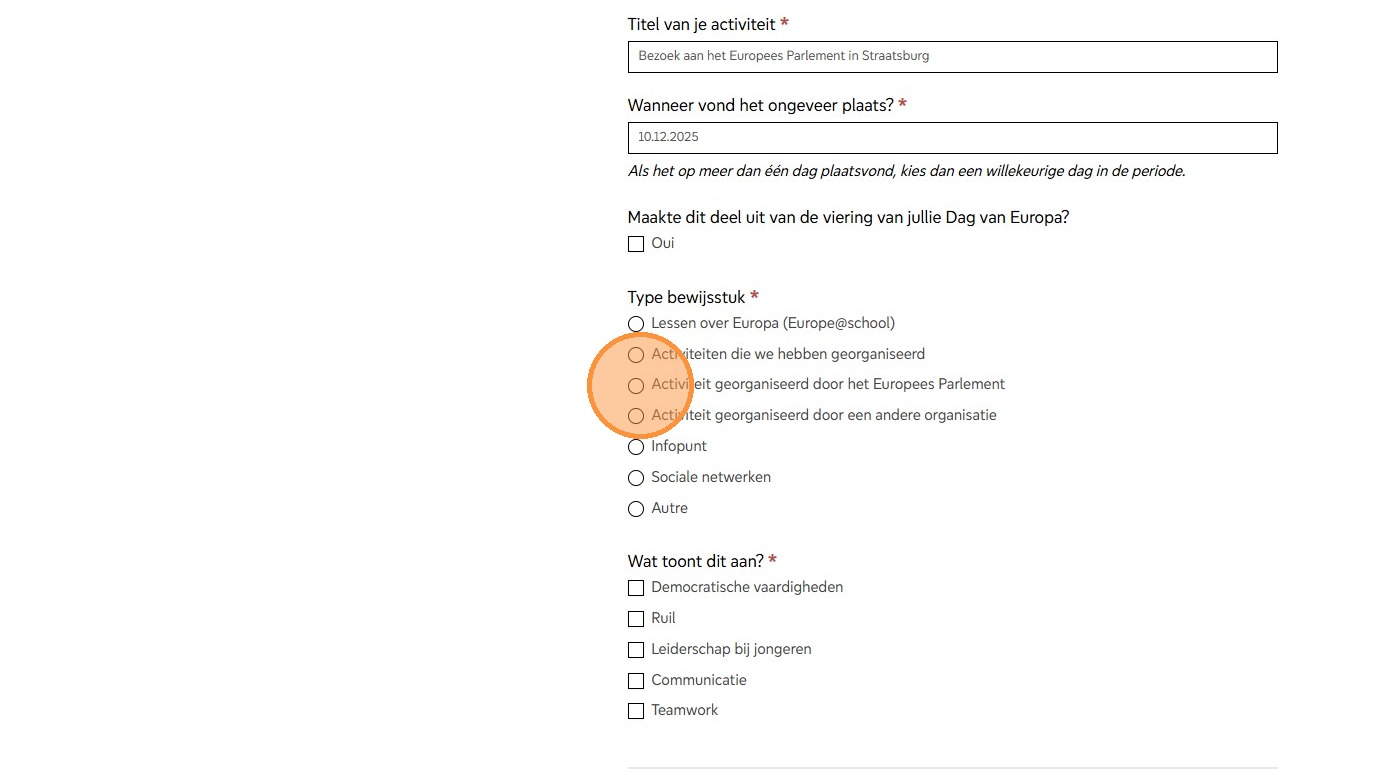
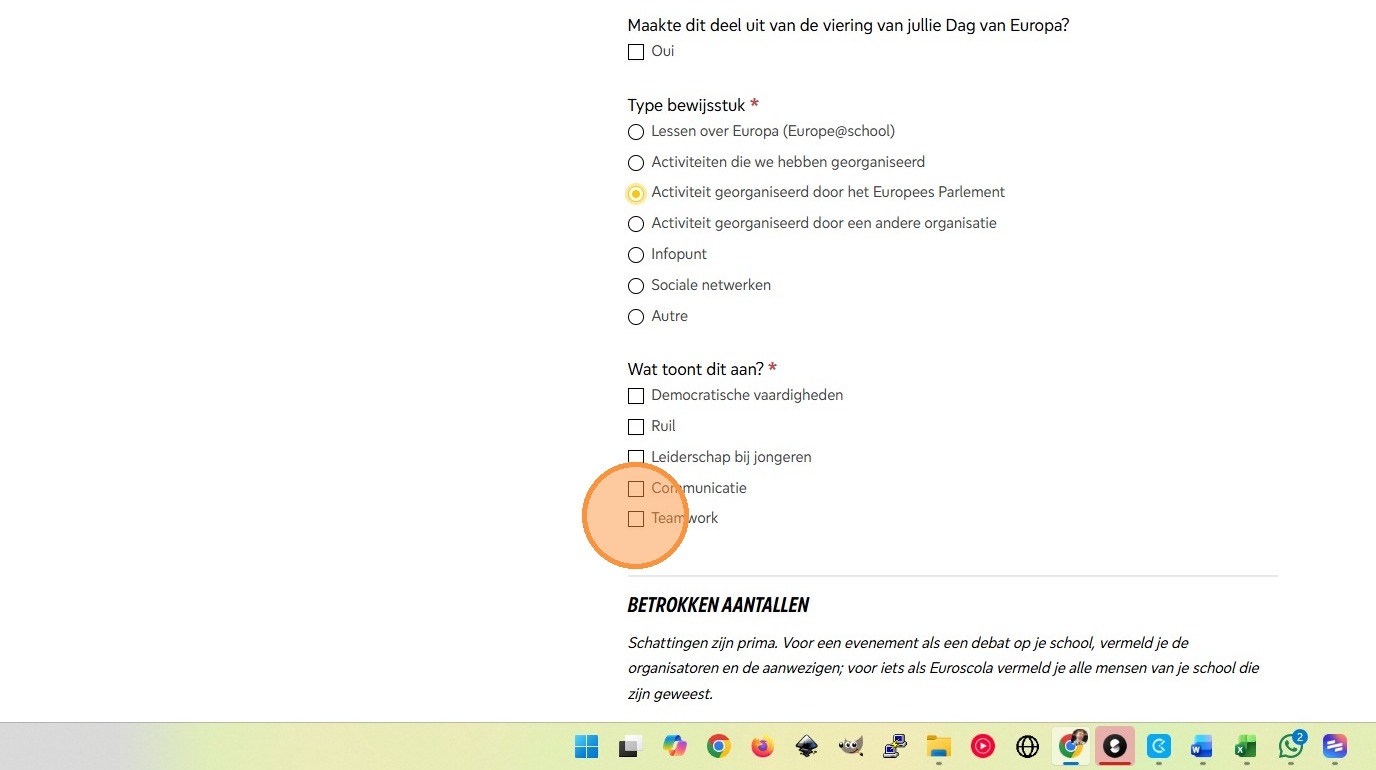
9. Select all the things it demonstrates.
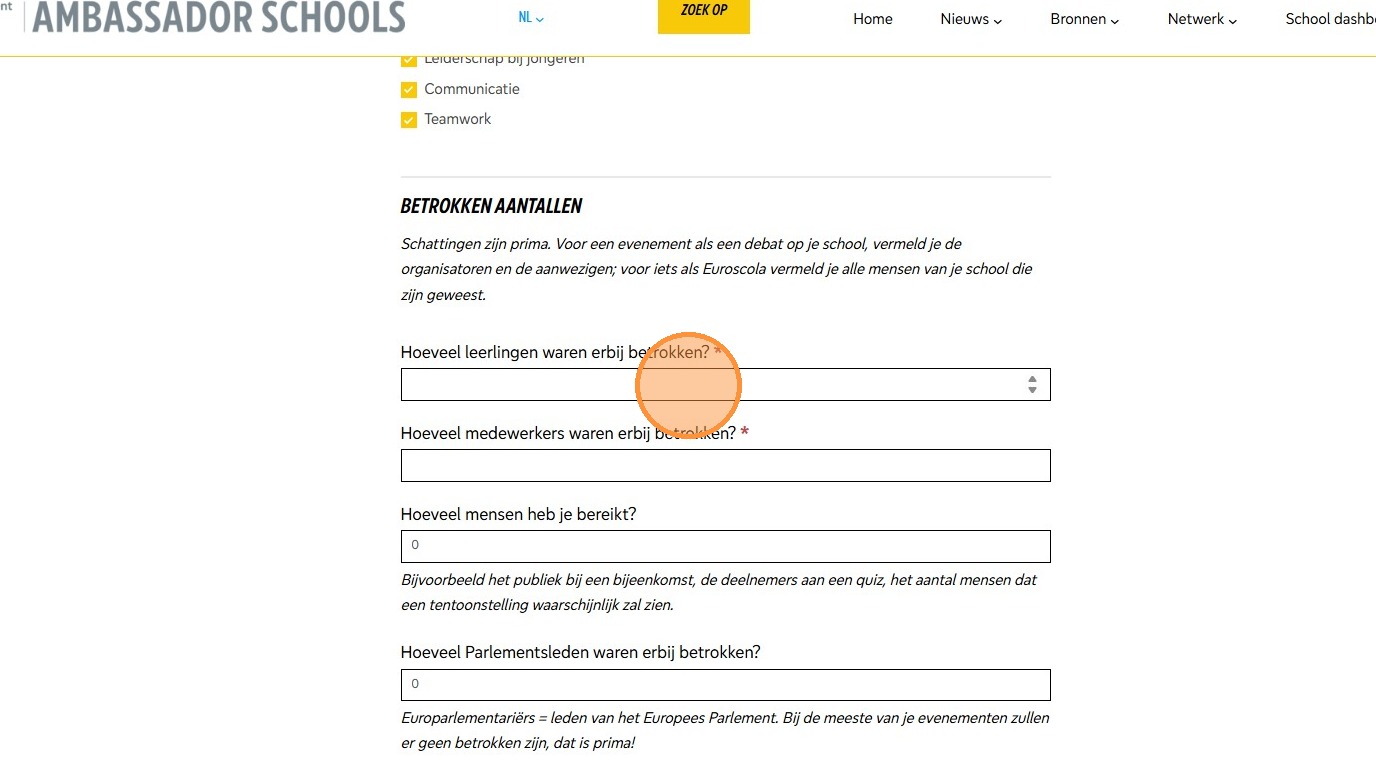
10. Fill out the numbers of people involved.
11. Add a description of the activity.
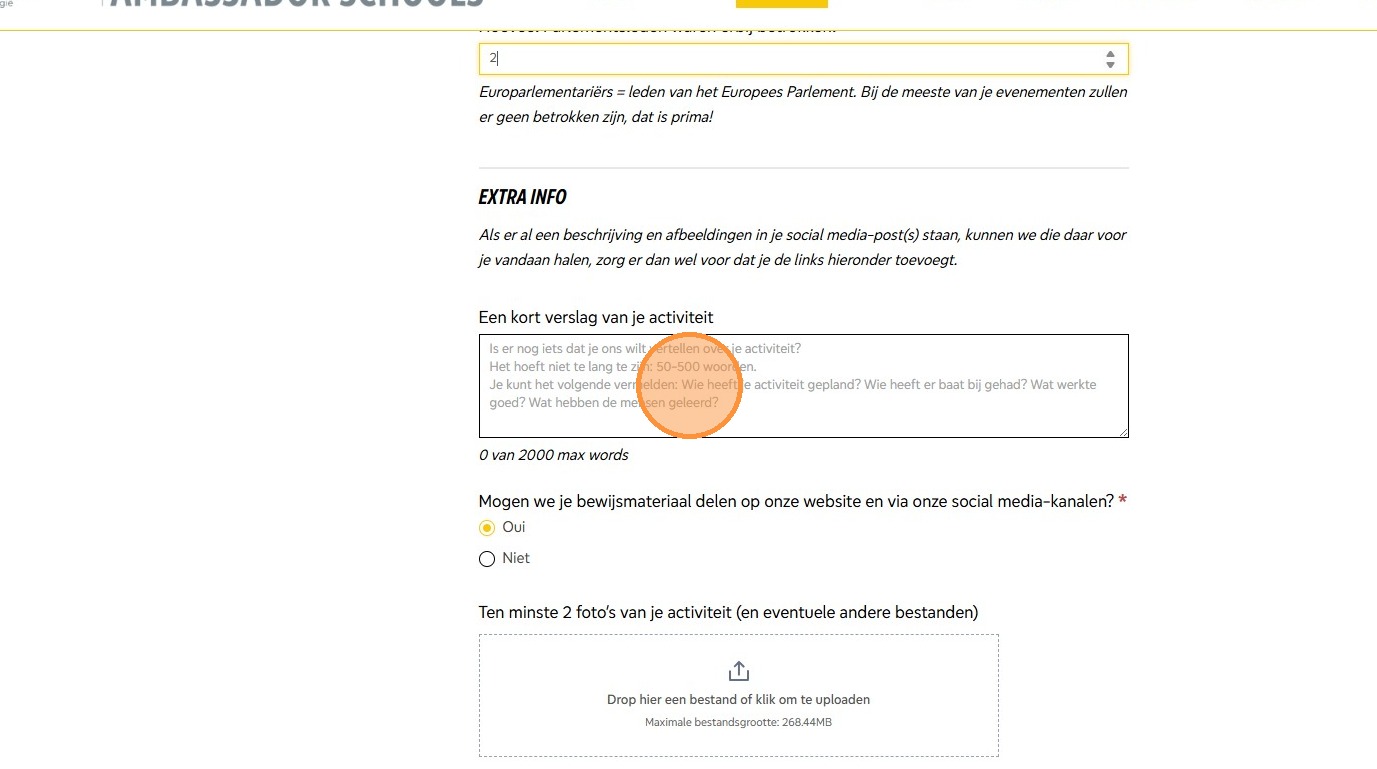
12. Add some photos, you can drag and drop them.
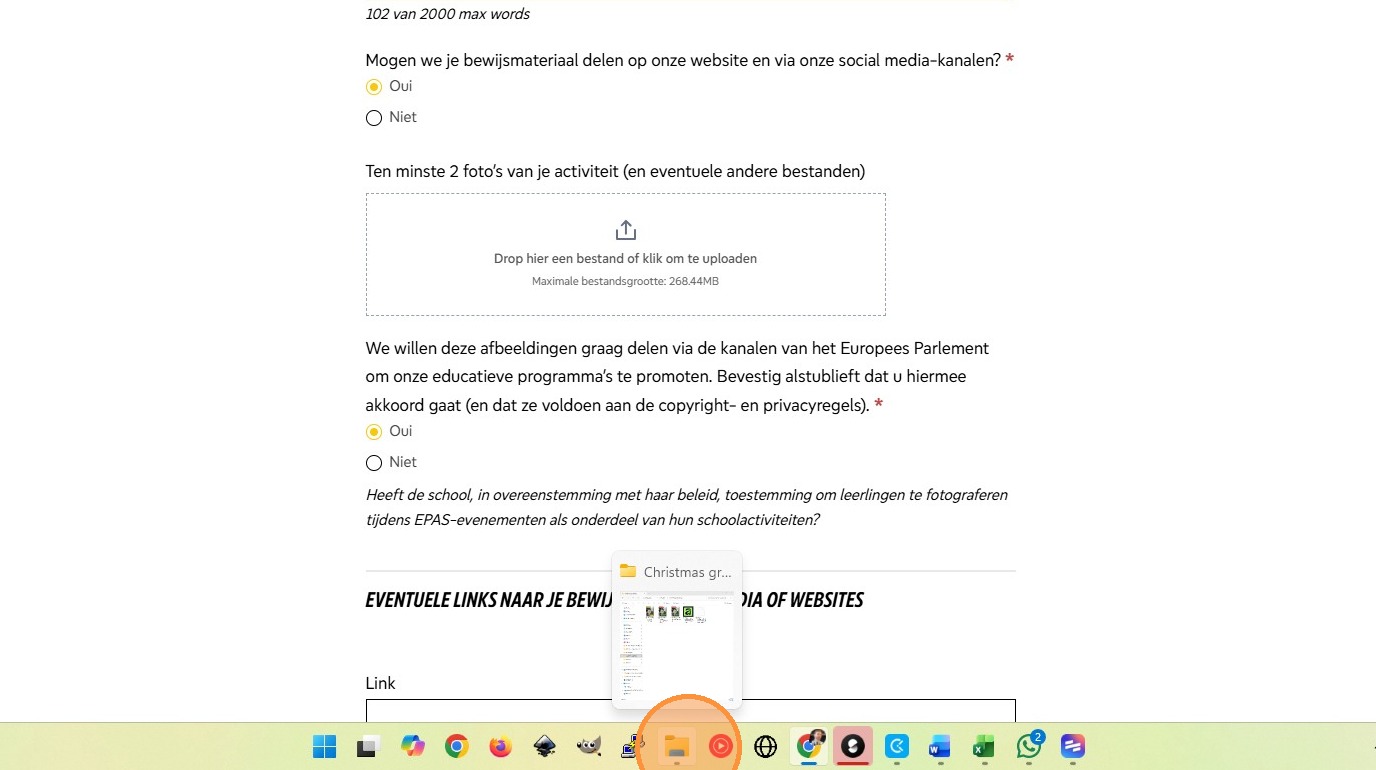
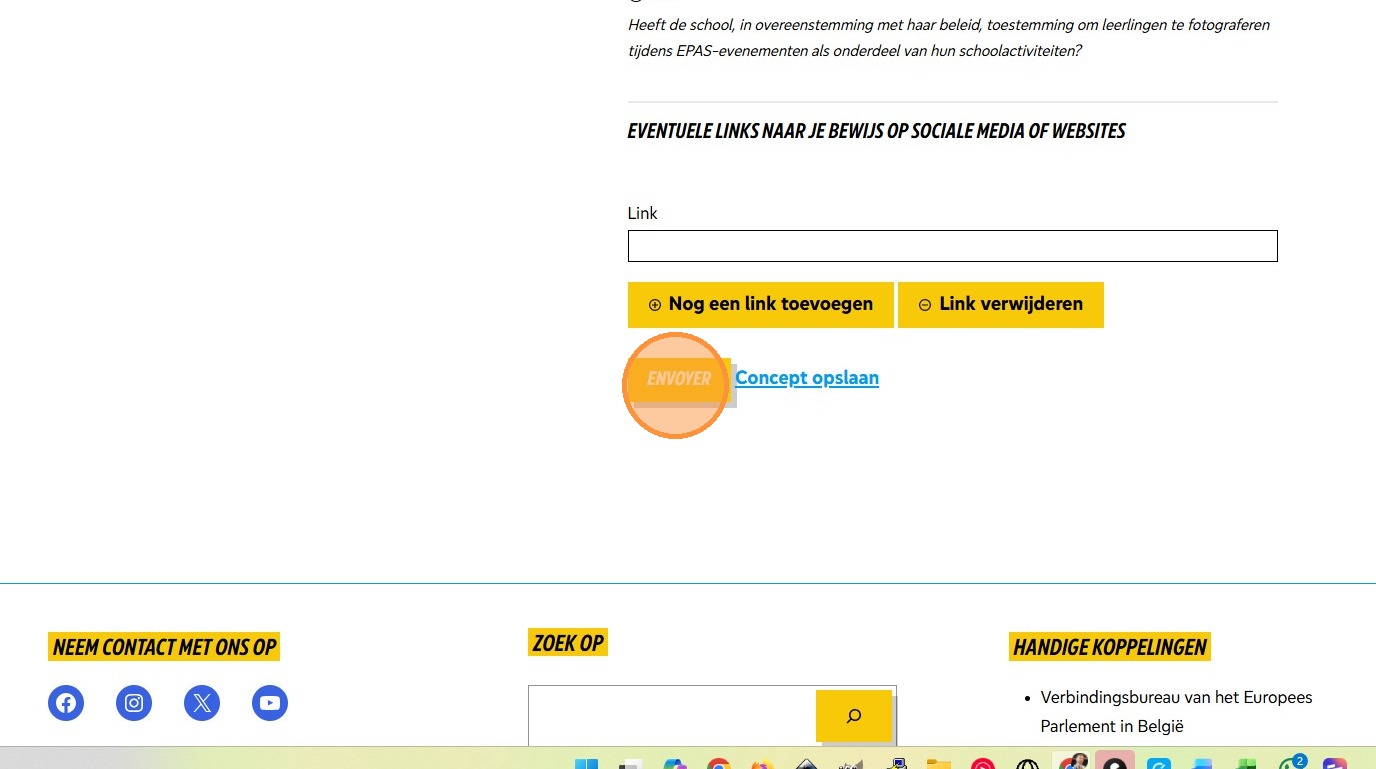
13. Click “Submit”.
View and Edit Your Evidence
Video guide
Step-by-step (click to expand)
1. Once we’ve uploaded some evidence, we might want to check it or update it. We might want to see where we are on our journey to becoming an accredited Ambassador School.
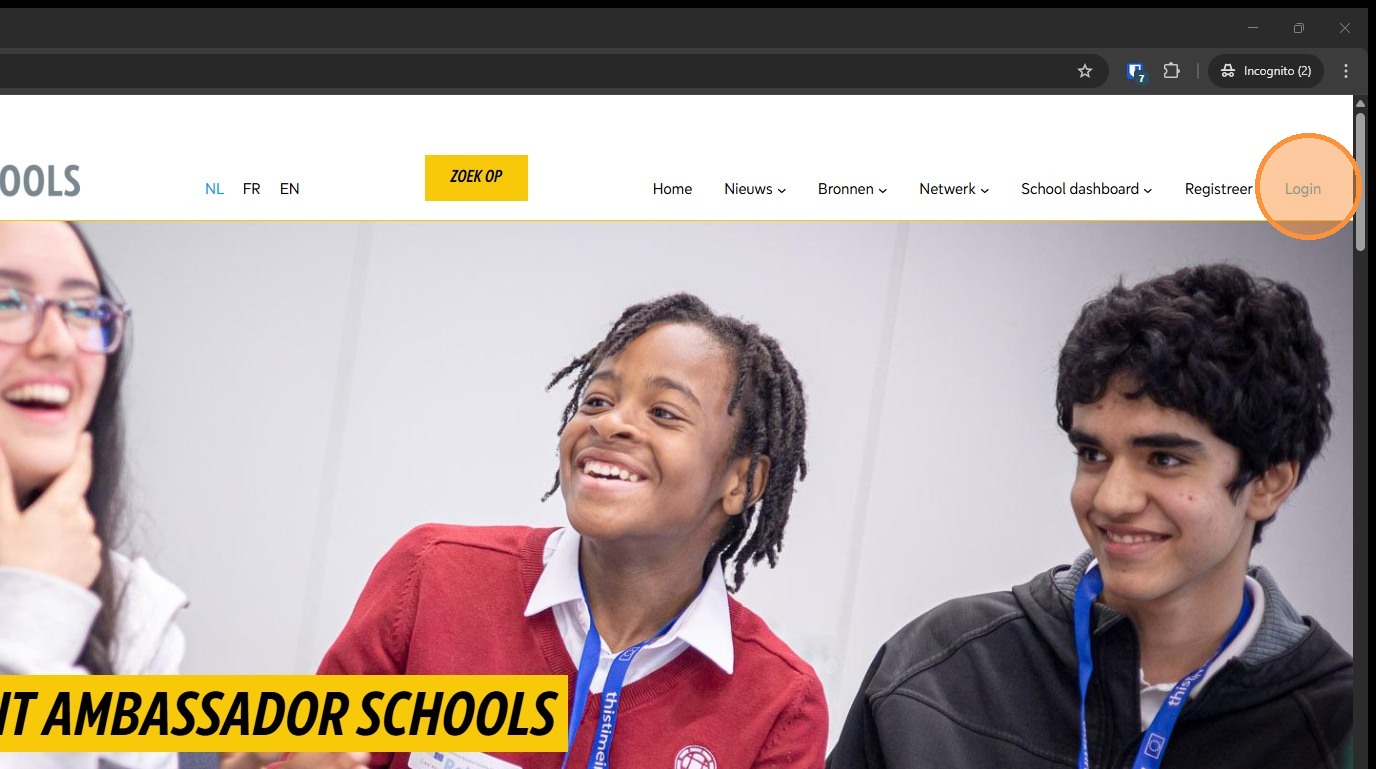
2. From any page, click “login”.
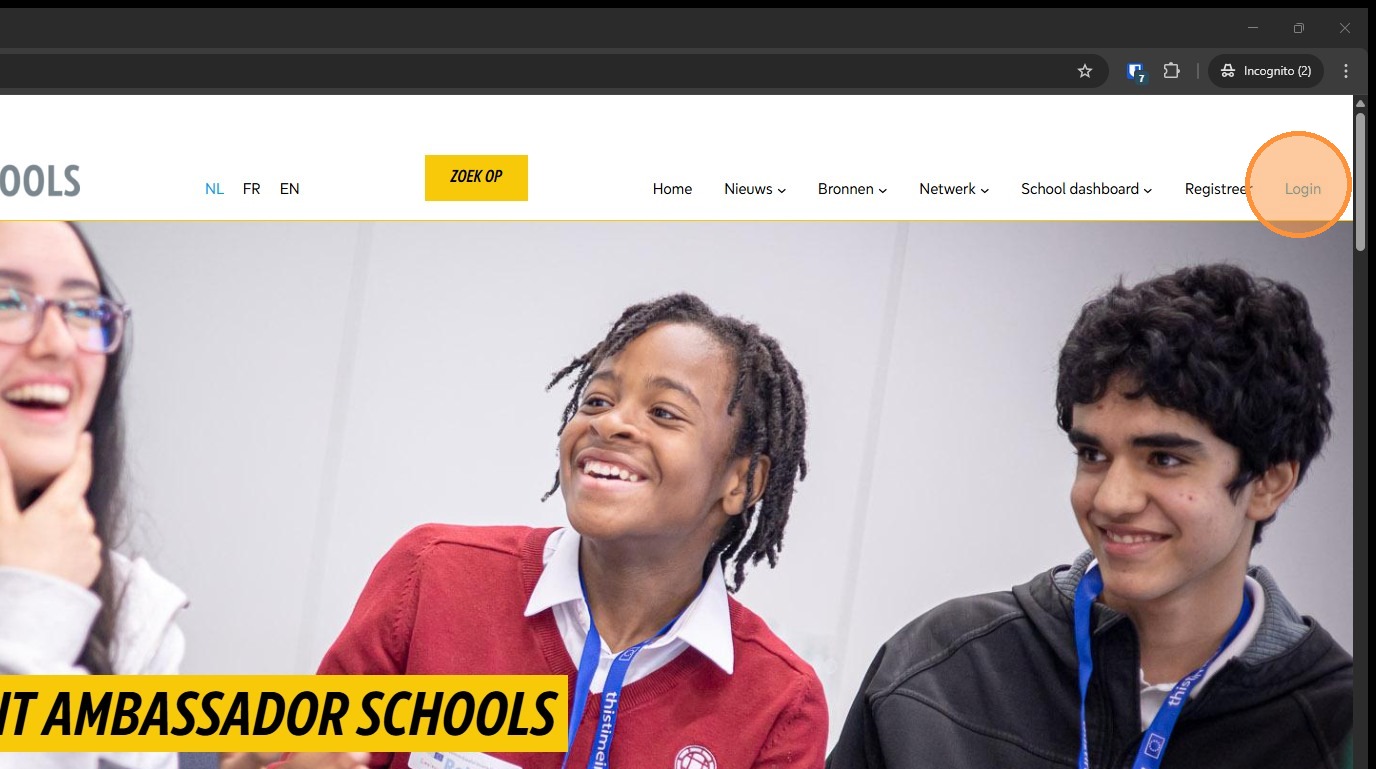
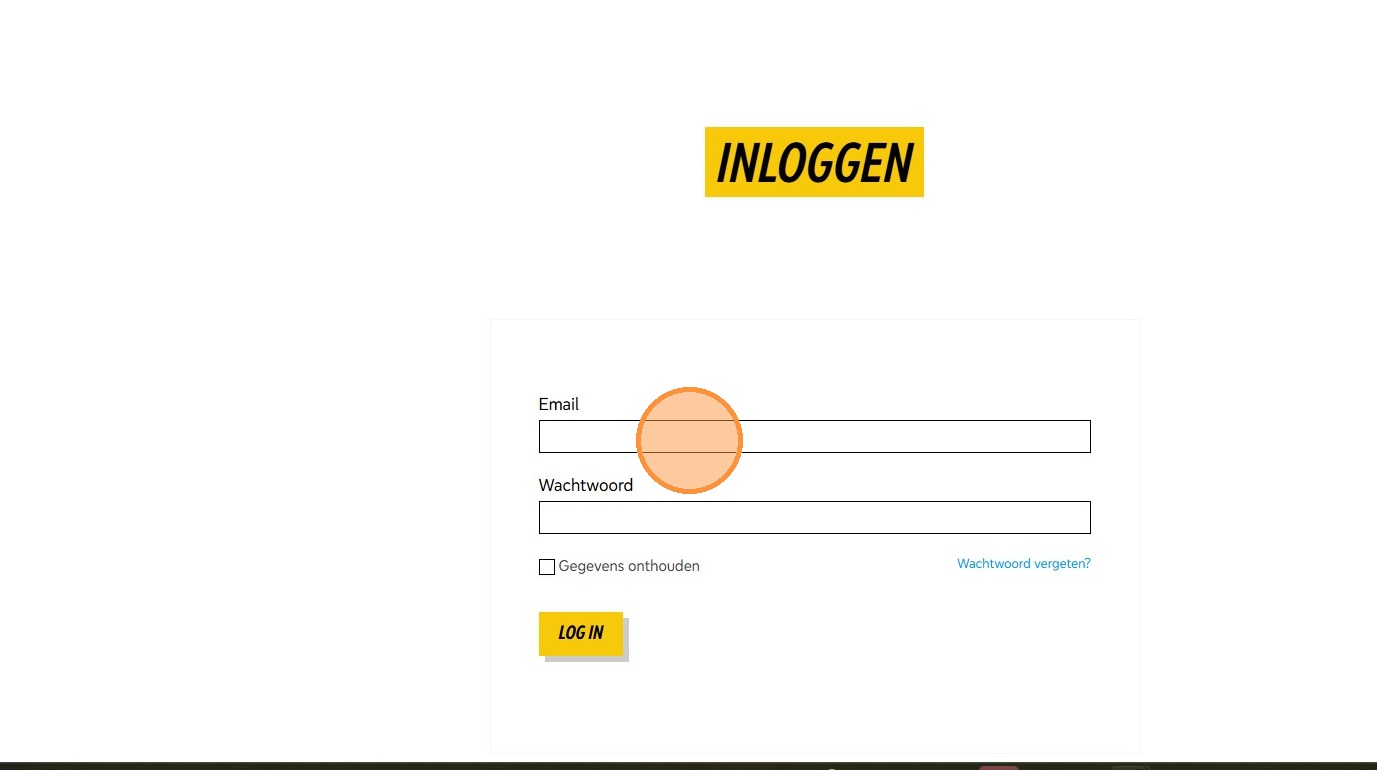
3. Enter your email and password and click “Log in”
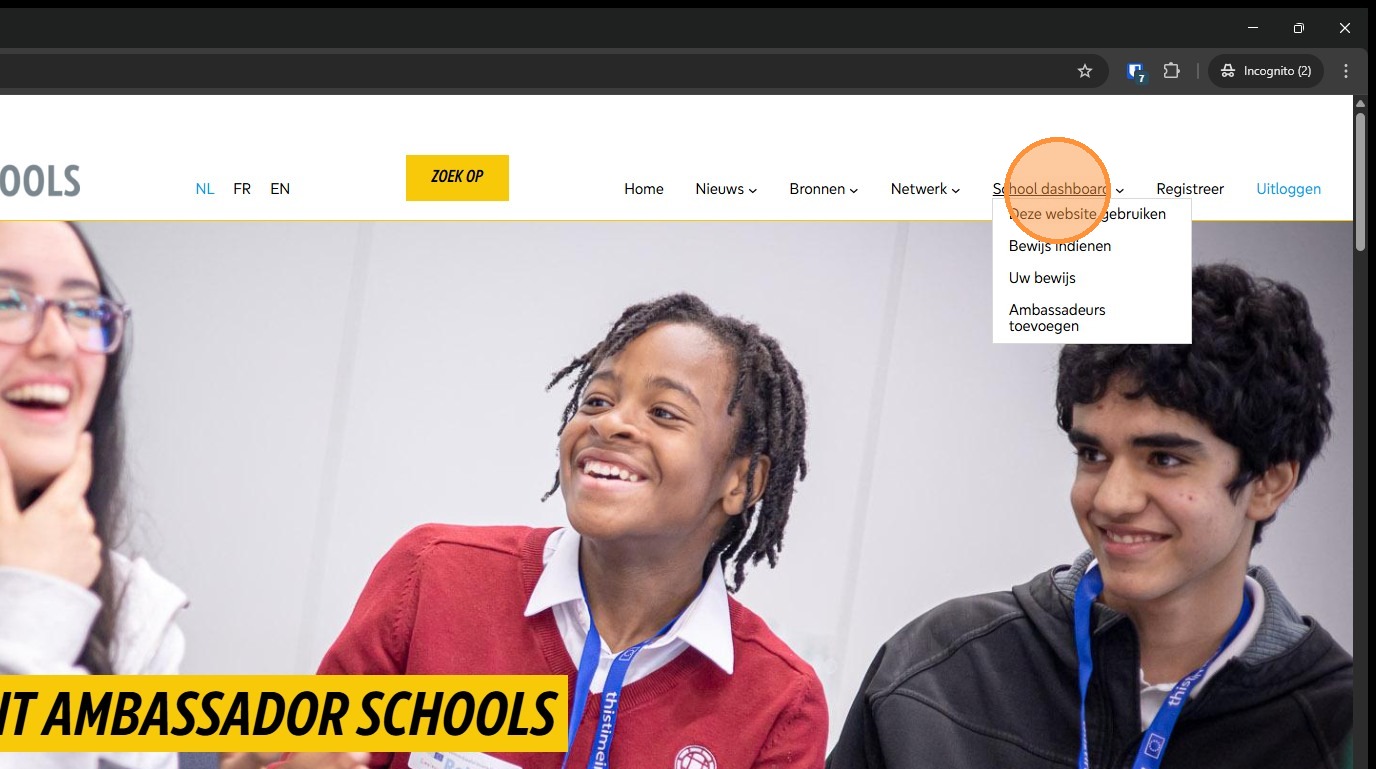
4. Click “School Dashboard”.
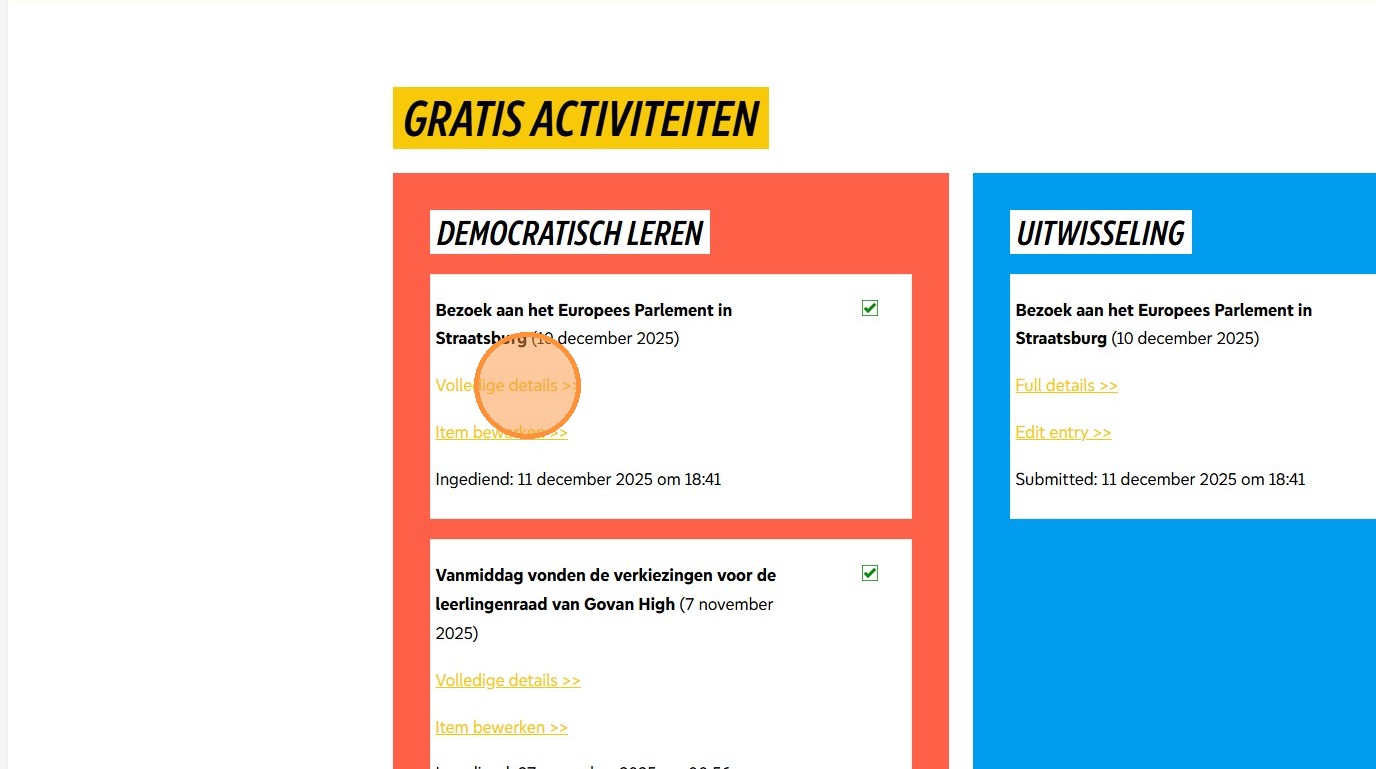
5. Here you can see what you’ve uploaded so far.
In each box is the information you’ve uploaded that meets that criterion.
Some evidence will be in several boxes as it meets several criteria.
You can click here to see the details of any of your evidence.
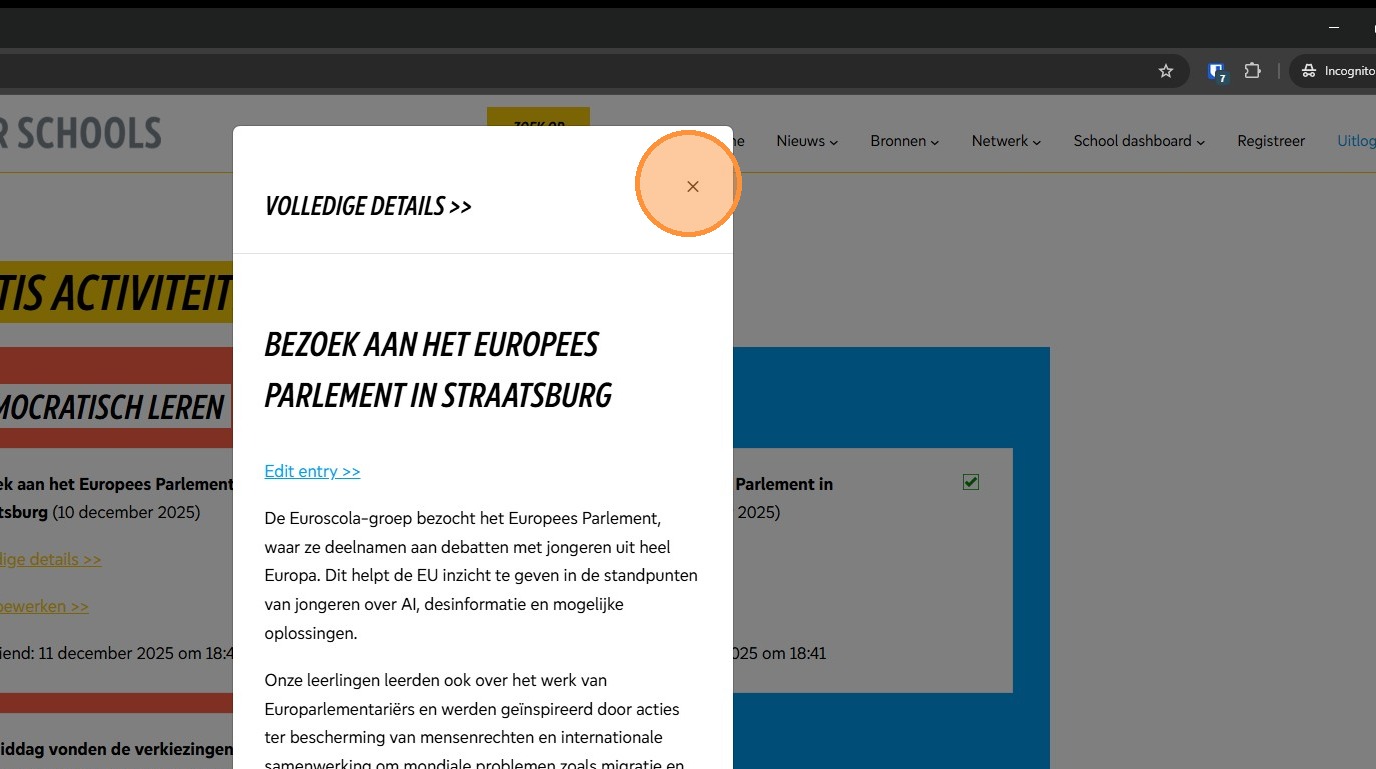
6. Click the cross to close the detailed view.
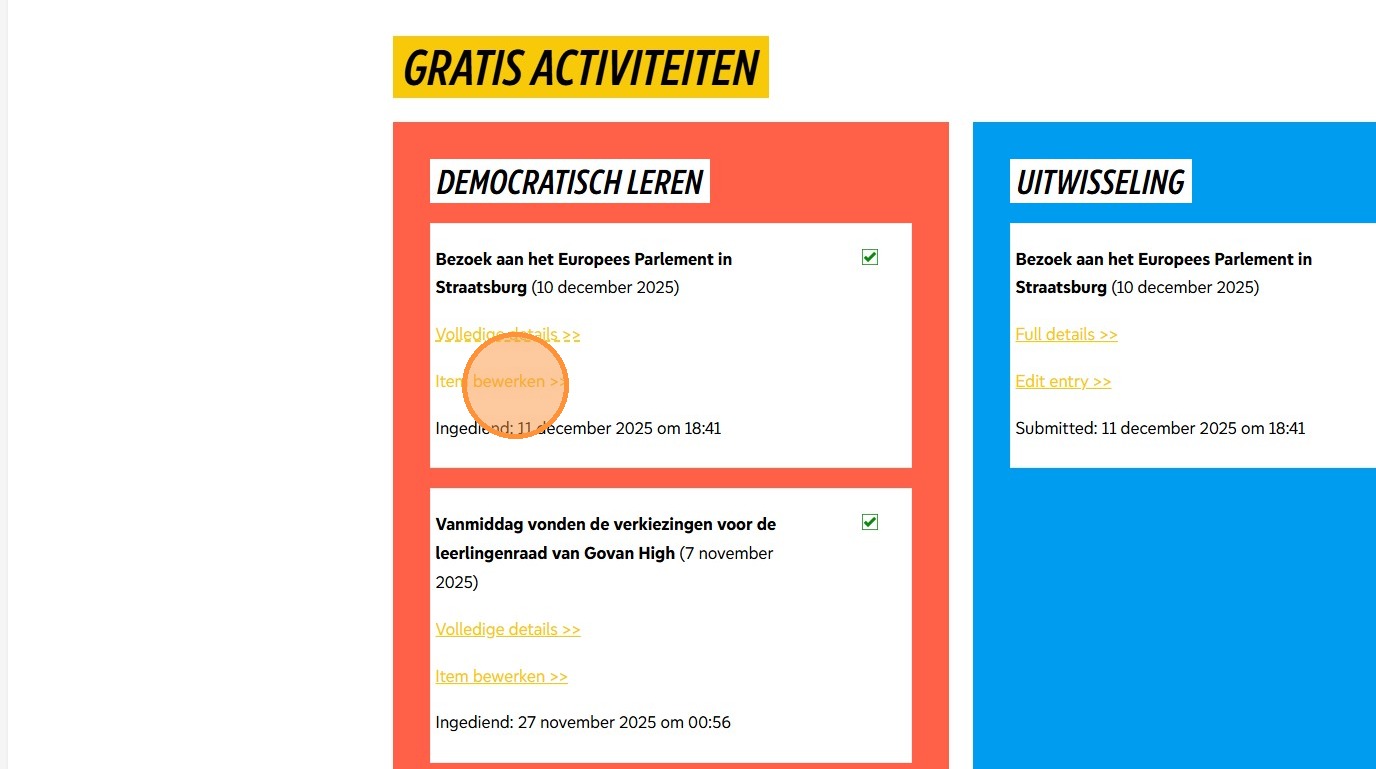
7. And this link allows you to update any evidence you have submitted.
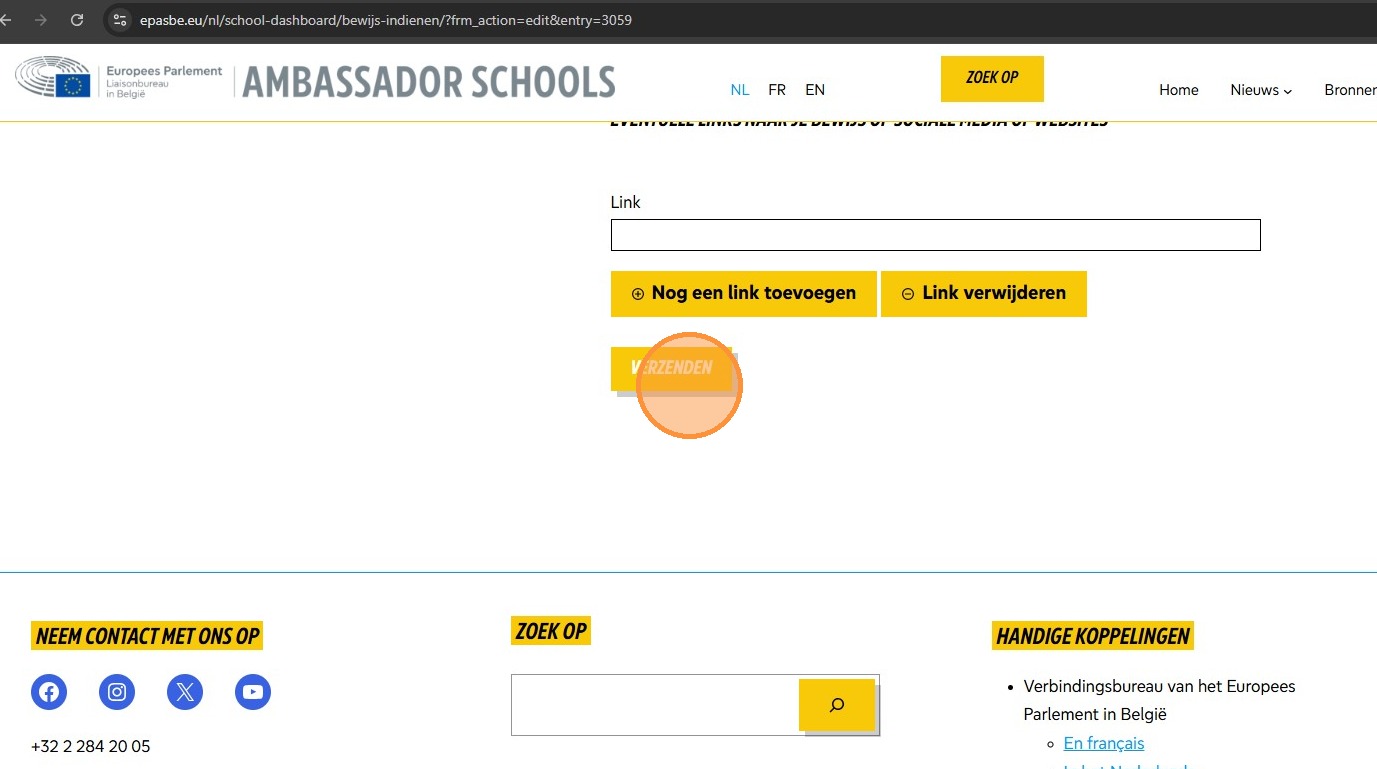
8. It takes you to the evidence form for that piece of evidence. Change the description, add photos, update permissions and click “submit” at the end.
9. When we go back to the school dashboard, we would see the updated version of our evidence.